Creating your Flex Query
A Flex Query is a custom report template inside Interactive Brokers — you define it once, then run it for any date range. ethro needs one template, run twice with different date ranges. Takes about ten minutes the first time.
Why a Flex Query, and not the activity statement other tools ask for?
Activity statements leave out what these schedules need most — each lot's acquisition date and the exact lot every sale closed. A Flex Query is the only IBKR export that carries it, so the figures are reconstructed per lot, not estimated. You run one template twice: the calendar year for Schedule FA, the financial year for CG & OS.
1 · Create the template
- Log in to IBKR Client Portal → Performance & Reports → Flex Queries.
- Under Activity Flex Query, click + (Create) and name it (e.g. "ethro-schedule-fa").
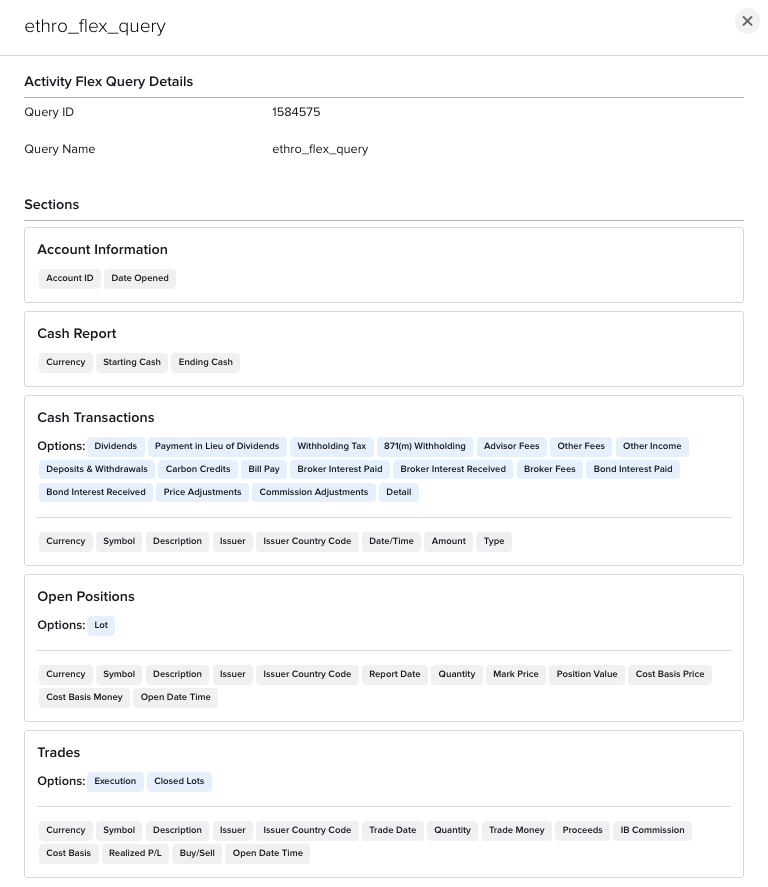
- Add the five sections below, then apply the General Configuration settings in step 3. For each section, set the Options as noted and tick exactly the fields shown — nothing more, nothing less.
2 · Sections and fields
These are the checkbox labels exactly as IBKR shows them in the field picker. IBKR exports them under slightly different internal column names (e.g. "Currency" → CurrencyPrimary, "Realized P/L" → FifoPnlRealized) — that's expected, and the tool reads the exported names for you.
Account Information
For Schedule FA Table A2 (account number and opening date).
Account IDDate OpenedCash Report
For Table A2's peak/closing cash balance. Ticking Starting Cash and Ending Cash automatically adds their Securities/Commodities sub-columns — that's expected.
CurrencyStarting CashEnding CashOpen Positions
CurrencySymbolDescriptionIssuerIssuer Country CodeReport DateQuantityMark PricePosition ValueCost Basis PriceCost Basis MoneyOpen Date TimeTrades
CurrencySymbolDescriptionIssuerIssuer Country CodeTrade DateQuantityTrade MoneyIB CommissionBuy/SellProceedsCost BasisRealized P/LOpen Date TimeCash Transactions
CurrencySymbolDescriptionIssuerIssuer Country CodeDate/TimeAmountType3 · Delivery & General Configuration
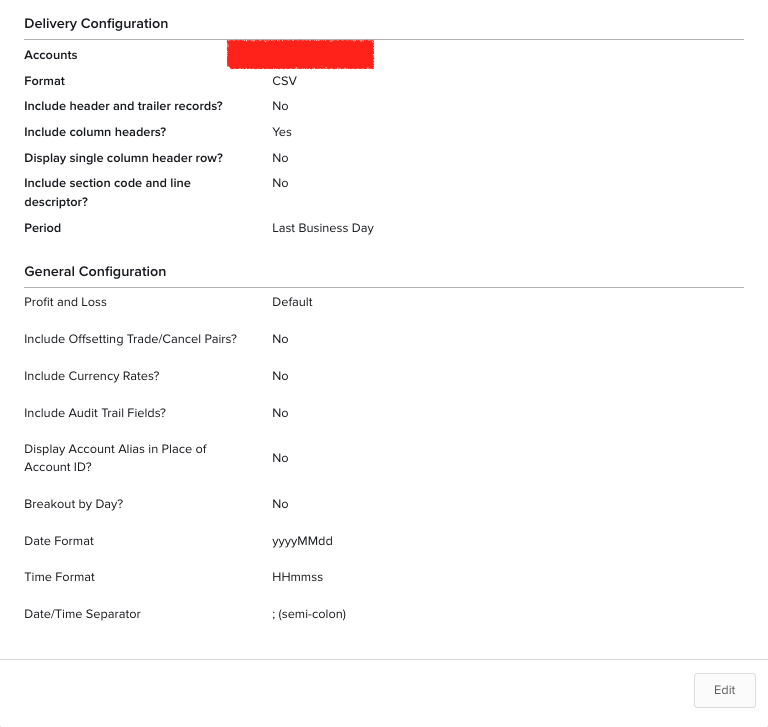
Leave every Delivery and General Configuration setting at its default — the only thing to change is the export Format: switch it from the default XML to CSV. Everything else (column headers, the yyyyMMdd date format, Include Currency Rates: No, and the rest) is already right at its default. The reference screenshots below show the full set of values if you'd like to confirm.
Compare your query against this
Once you've saved the template, open its Details view in IBKR and check it against these reference screenshots — the five sections, their Options, the exact fields, and every Delivery / General Configuration value should match. Your Query ID and account will differ; everything else should be identical.
4 · Run it twice
Calendar year file
Jan 1 – Dec 31 of the calendar year ending inside the financial year you're filing for. Feeds Schedule FA (foreign asset disclosure is calendar-year based).
Financial year file
Apr 1 – Mar 31, India's financial year. Feeds Schedule CG (capital gains) and Schedule OS (dividends, interest).
Run the same template with each date range (Run → custom date range) and download both CSVs. In the tool, first pick your Assessment Year — it then shows the exact Jan 1 – Dec 31 and Apr 1 – Mar 31 dates each file must cover, so you can match your Flex Query runs to them. Upload the calendar-year file on the left and the financial-year file on the right. Assessment Years from AY 2022-23 onwards are supported — including past years you're fixing via a revised or updated return; earlier years generally fall outside the current correction windows (your CA can confirm what applies to your case).
If the upload fails
The most common cause is a section with different fields than listed above — the error message will name the first unrecognized row. Edit the template, match the field list exactly, re-run, re-download. Still stuck? Use the feedback form and describe the error you see.